Edge App
Purpose
NOA Connect on the edge registers the device with the tenant as actively listening to incoming remote service requests.
Check in the App Manager if the connection status is "Online" (green).
- To install the app from the cloud the device has to be online.
- To remotely access the device from a Windows computer it has to be online.
Installation
-
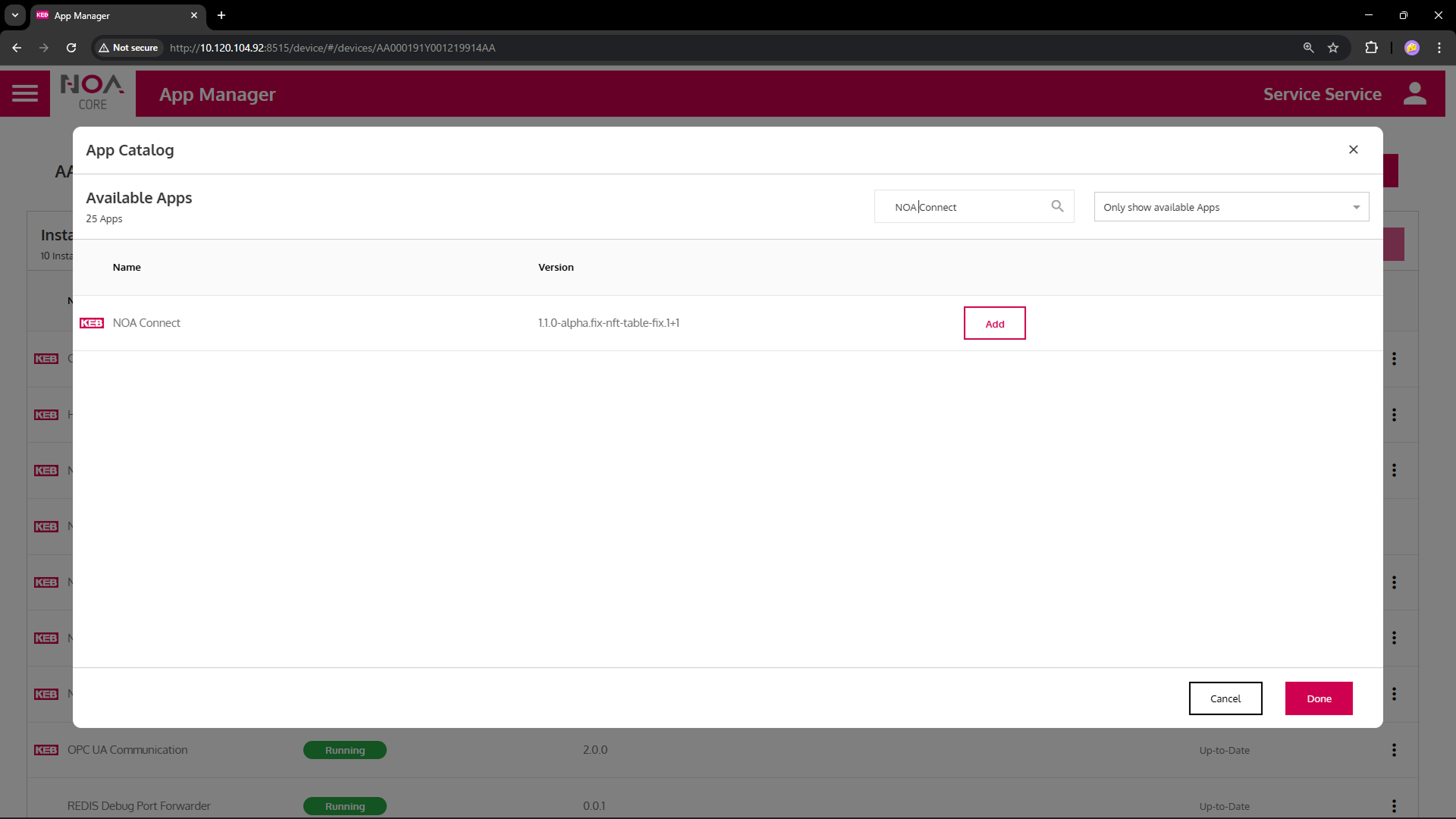
Install via App Manager
Open the App Manager on the edge device. Click the button "Add New Apps", locate "NOA Connect", then click "Add" + "Done"; then apply changes + confirm.
Wait for the installation to finish. The device is now ready to accept remote connections from the Windows client.
Explore the App
The default settings in the app should work out of the box.
To check remote activity and adjust settings follow these steps.
-
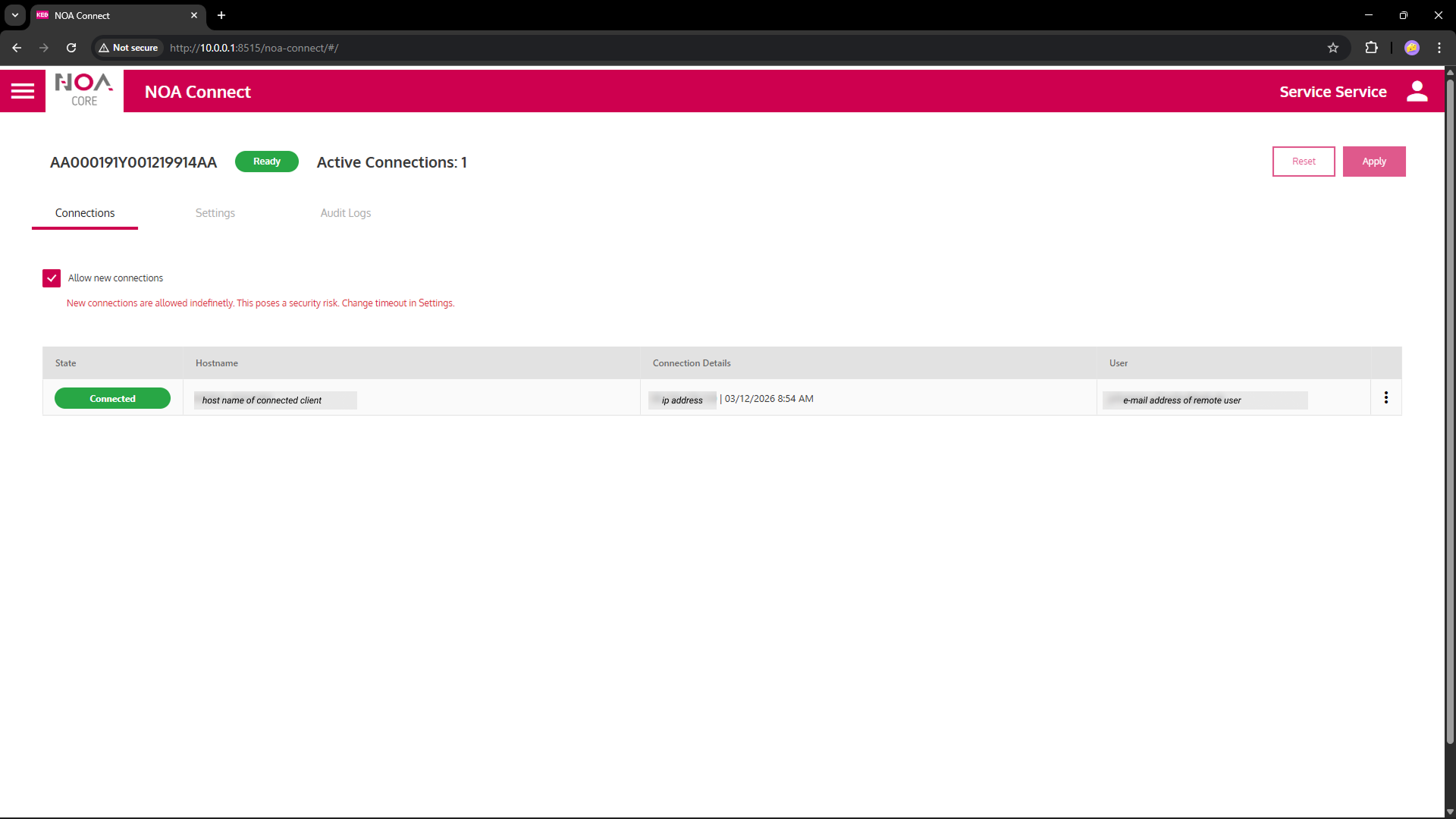
Open NOA Connect
Open the Welcome Page and click on the tile "NOA Connect".
The app shows all active connections in the list. Hostname, IP address and e-mail address have been blurred in the screenshot.
You can disable the checkbox to prevent any client to open a new remote connections. Existing connections stay open until they are closed (by the client).
Remote AccessIn this example the NOA Connect app was opened via an active remote connection (see URL).
-
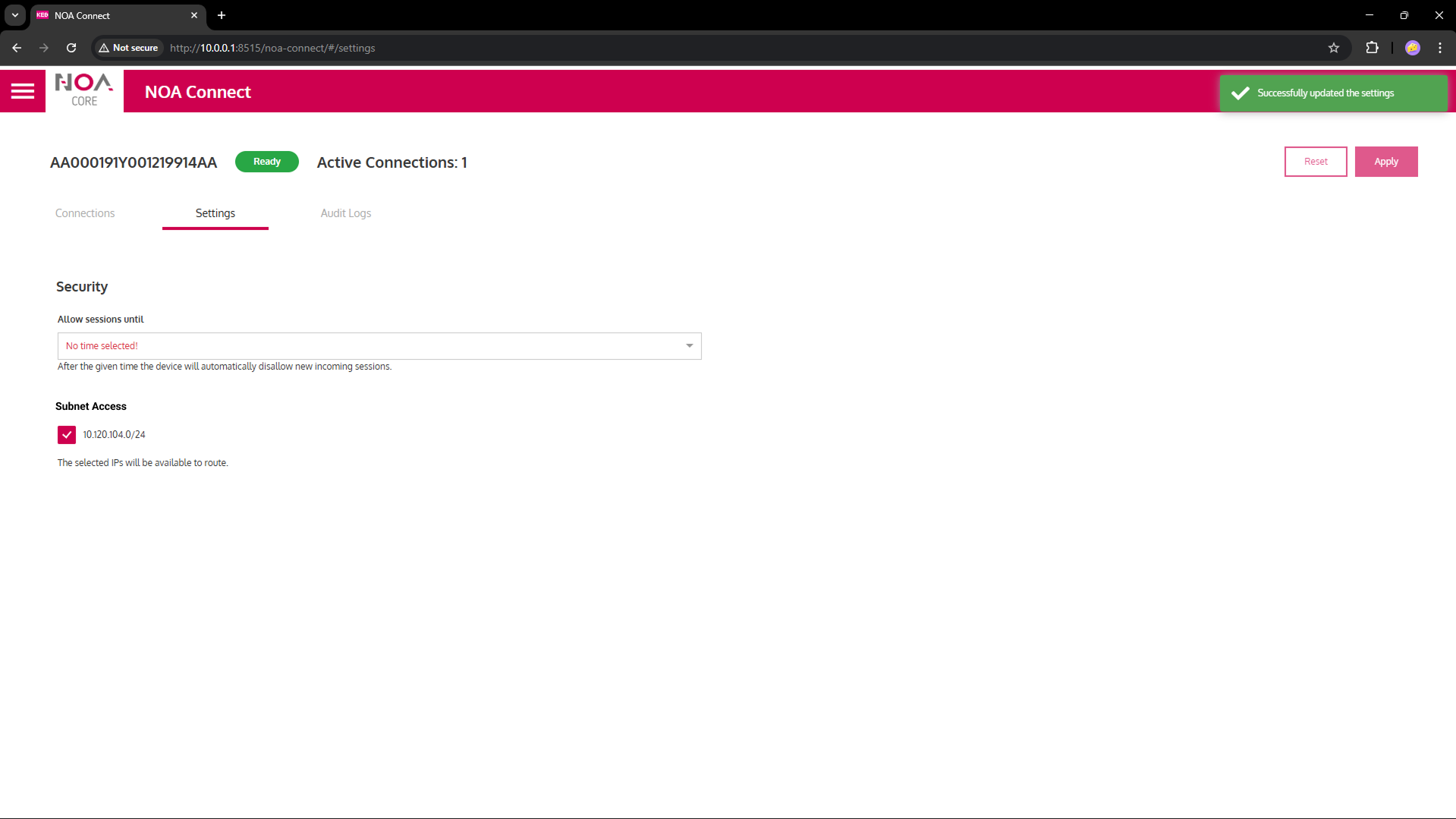
Switch to tab "Settings"
Specify a time window for remote service; after the specified time no new connections will be permitted.
With NOA Connect you can access available subnets from the edge device. The app shows the available IP range. Disable the checkbox if you don't want to make the subnet accessible for remote service.
-
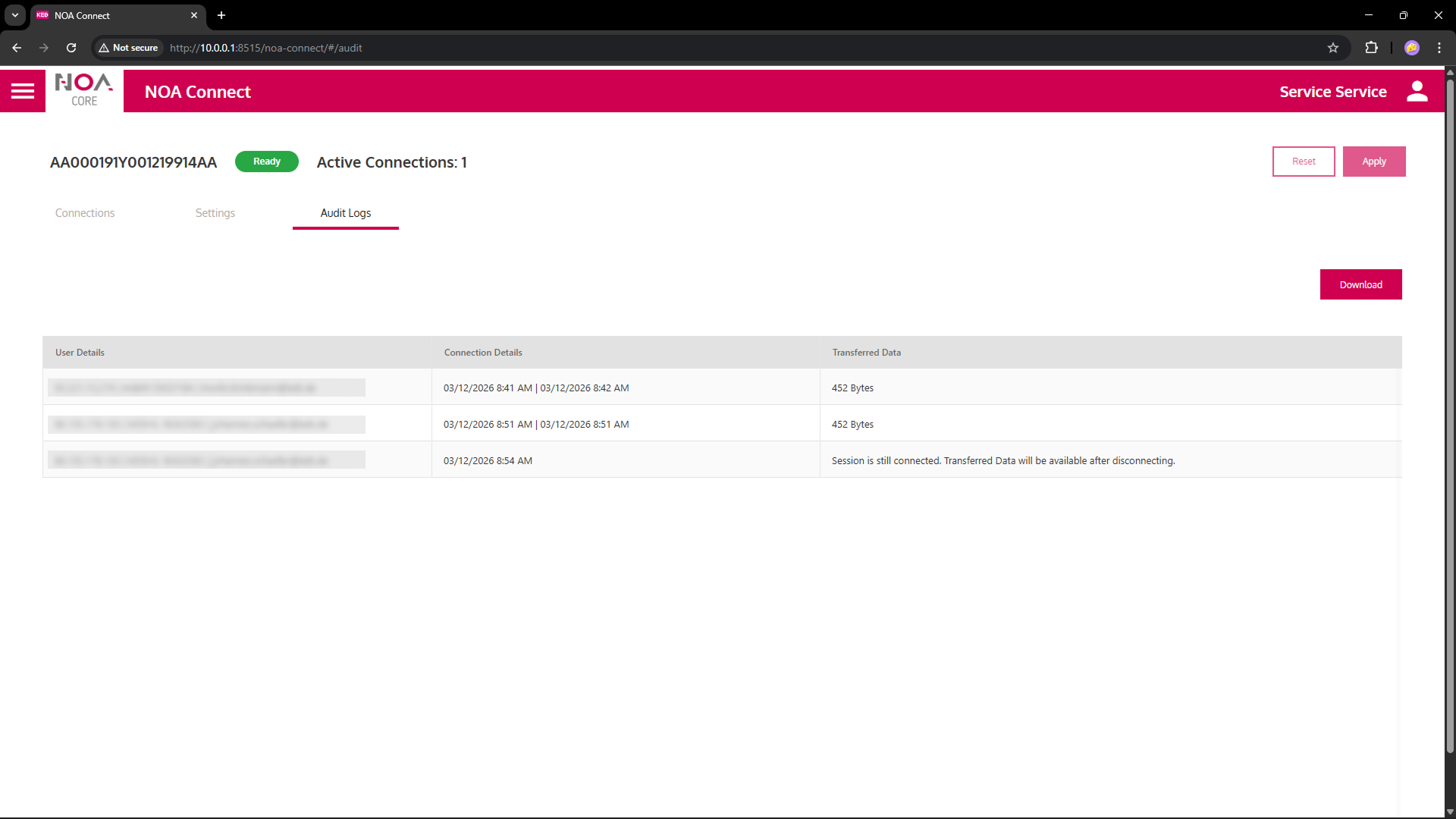
Switch to tab "Audit Logs"
The app sshows a list of the last remote sessions. User details (Hostname, IP address, e-mail address) have been blurred in the screenshot.